
Effective Security Group Rules
15 Dec 2025 · 3 min read · New Features, Security

We recently launched a new feature in Katapult that makes it easier to see exactly which security group rules apply to a specific virtual machine. It displays a consolidated list of all rules from every applicable security group, sorted according to how they are applied to network traffic going in and out of a virtual machine.
You can access this page via Tools > Security group rules on any virtual machine:

Some Context
Before diving into the details, it’s worth revisiting how security groups work in Katapult.
Security groups are quite flexible: you can apply multiple security groups to a single virtual machine and reuse the same security group across many virtual machines.
While this flexibility is powerful, it also comes with some inherent complexity. When several security groups are applied to the same virtual machine, it's not always obvious how their rules interact, or which rules take effect.
This design lets you organize rules however you prefer. You could create:
- One security group per virtual machine with all its relevant rules, or
- Build a collection of smaller, focused security groups (e.g., HTTP(S), SSH, MySQL) and mix and match them across your infrastructure.
Rule Ordering
When you apply multiple security groups to a single virtual machine, or when deny rules are involved, our UI has historically not made it clear exactly in what order those rules are applied. This often leads to some confusion when you try and orchestrate a complex set of rules.
Behind the scenes, here's how rules are processed:
- All rules from all applicable security groups are gathered into a single flat list.
- Deny rules are sorted to the top, ensuring they always take priority over any allow rules.
- A final "deny all" rule is added at the end, so any traffic not matching explicit allow rules is denied.
- If the list of applicable rules is completely empty, the final "deny all" rule is not added, meaning all traffic is allowed.
Important gotcha: This has one counter-intuitive side-effect. Let's say we apply two separate security groups to a virtual machine:
- Security group A has “Allow all traffic?” set to true.
- Security group B allows only HTTP(S) traffic (TCP ports 80 and 443).
The end result after gathering all rules is a list of rules that allows HTTP(S) traffic, and a deny all rule at the end. So despite security group A saying “allow all traffic”, the explicit allow rule for HTTP(S) traffic in security group B ends up overriding that, as the presence of any allow rules implies all other traffic must be denied.
Effective Rules
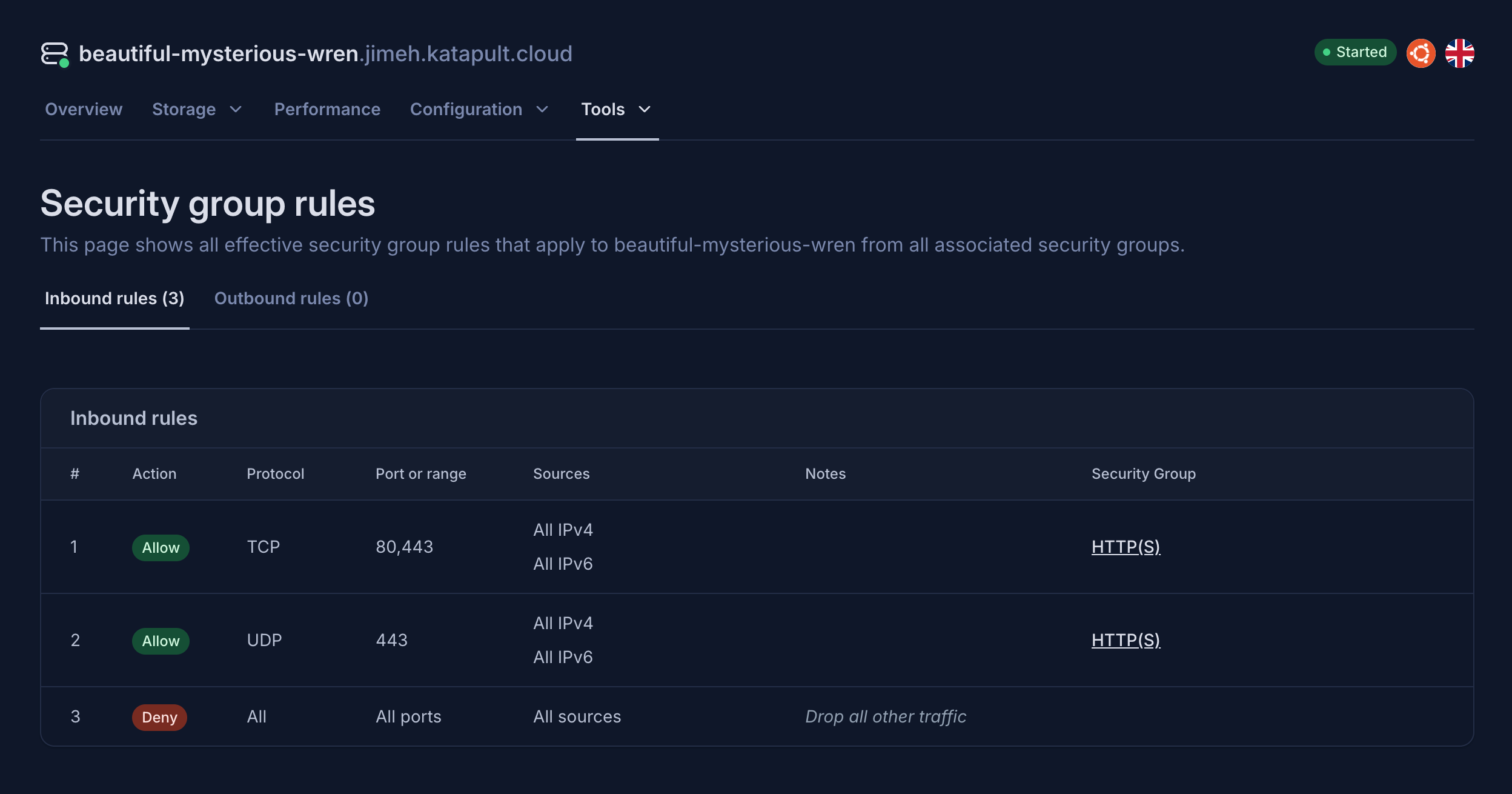
This is where the new security group rules page on virtual machines comes in. It gathers, sorts, and displays rules in the same order as our network infrastructure processes the rules when handling traffic to/from your virtual machines.
So if we were to apply an "Allow All" and an "HTTP(S)" security group:

We can then view the effective rules, and clearly see that only HTTP(S) traffic is allowed, and all other traffic is dropped:
Wrapping Up
Hopefully this new feature helps you better understand and debug your security group configurations. No more guessing about how multiple security groups interact. Simply navigate to Tools > Security group rules on any virtual machine to see exactly how your setup affects network traffic.
Share this article
About the author

Jim
Staff Software Engineer at Krystal. Plays with code, video games, and on occasion, design.